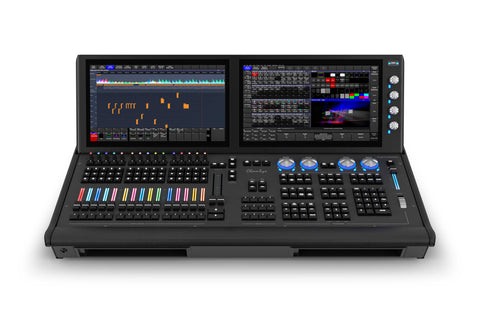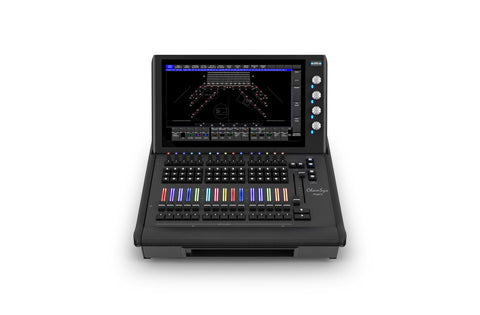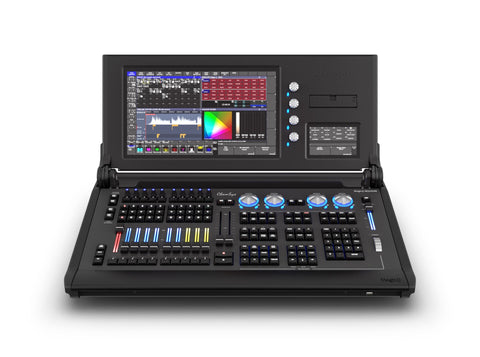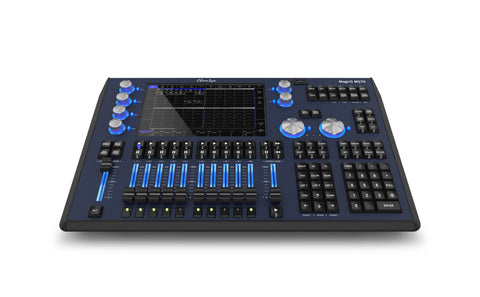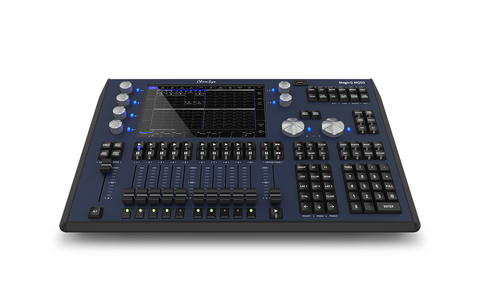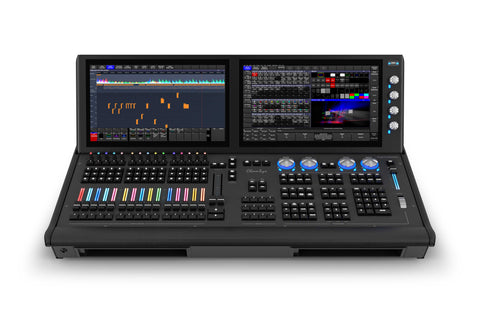


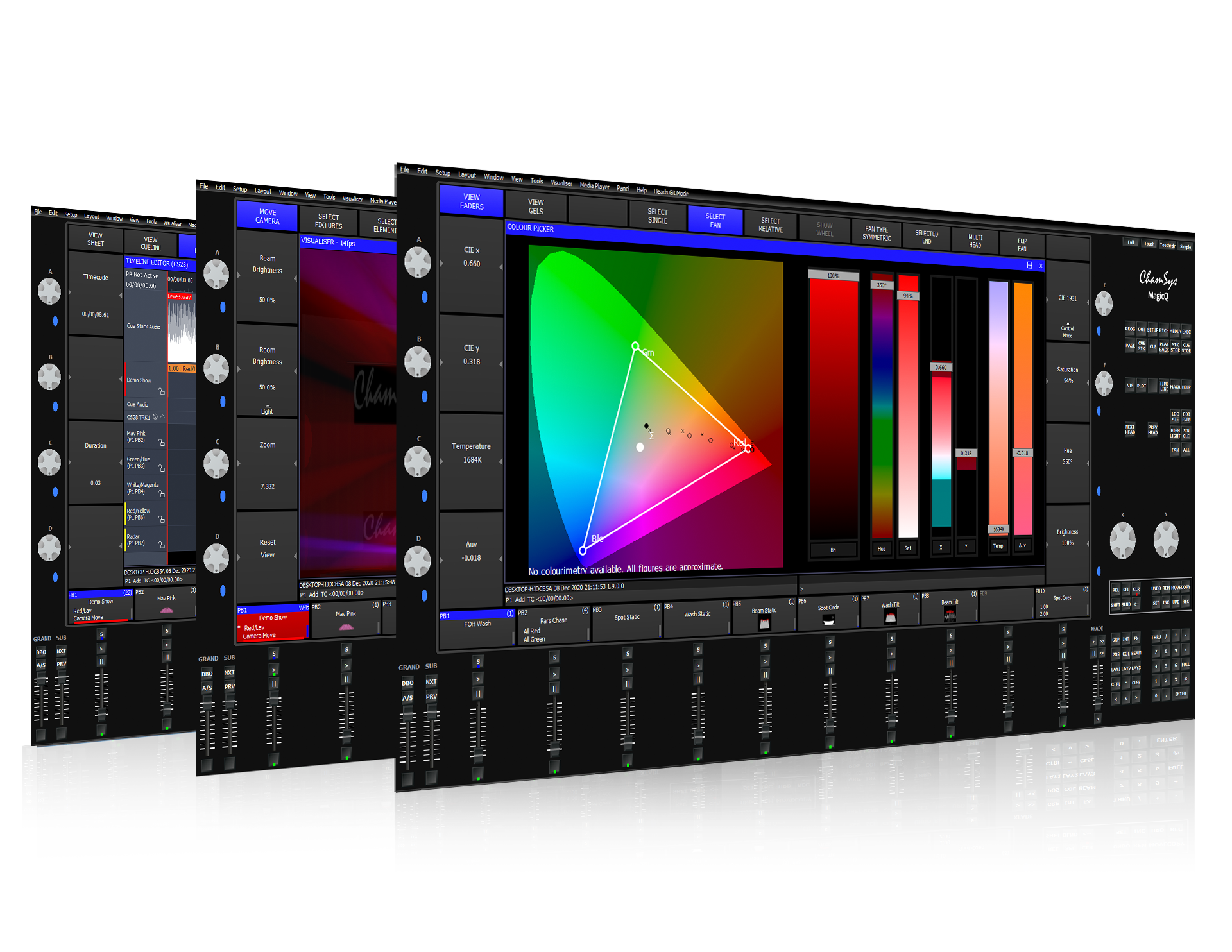
MagicQ Software MagicQ Software
MagicQ offers powerful lighting control on up to 256 universes with full lighting visualisation, pixel mapping, and HD media playback on up to 8 different layers, all integrated smoothly to streamline workflows, save time, and shorten learning curves on even the most complex lighting systems.
MagicQ PC is available free of charge for use on Windows, Mac and Linux with 64 universes of output fully enabled (via Art-net, sACN, Pathport) - no hardware required!
Note users should NOT use beta versions 1.7.4.4 to 1.7.4.6 to create shows that they plan to use on earlier software versions such as stable version 1.7.4.3. Latest personalities (from v1.7.4.4 and from heads.all file) have CTO and CTB colour assigned to new attributes which if loaded on software versions prior to 1.4.7.3 will appear as pan/tilt attributes Users can easily work around the issue in these earlier versions by editing the heads in the Head Editor to reassign the channels to colour attributes.

 Key Features

 Specifications

 Training Tutorials

 Support Documents

 Software Downloads

MagicHD Media Player
MagicHD is a powerful Media Player that is seamlessly integrated with MagicQ software and MagicVis visualiser. MagicHD has been designed to make programming and operating of combined lighting and media shows simple and easy.
Download

MagicVis Visualisation
MagicVis is a powerful visualisation system fully integrated with ChamSys free MagicQ software to enable lighting designers to pre-visualise their shows, to program blind and to generate rigging paperwork including plots and patch lists.
Download

MagicQ Remote Control App for iOS/Android
MagicQ includes in-built support for the FREE MagicQ Remote Control App to remote control MagicQ systems including MagicQ consoles and MagicQ PC Wing solutions.
Features:
- Focusing with pan and tilt controls.
- Position setup.
- Colour adjustment using the rainbow colour picker.
- Rig testing through the unique MagicQ Execute Window.
- Editing and updating of Palettes, Groups and Cues.
- Easily connect to the console by simply scanning the console QR code (requiring no network configuration by the user). - MQ50/MQ70 with built-in WiFi only.
Minimum Requirements:
- Android 8.0 or iOS 14.0.



Morphing
When a show tours, or is adapted to a new venue, the lighting designer may need to substitute new fixtures for the ones the show was programmed with originally. This can be very time-consuming if the console isn’t equipped with the right tools for the job. While other consoles may offer their own solutions to fill this need, the ChamSys approach is a standout feature that makes experienced operators request MagicQ as their first choice. MagicQ supports Head Morphing, which enables a seamless and quick substitution of one head type to another. MagicQ automatically transfers the programming from the old head type to the new head type, converting the show data as appropriate.
Here are some ways that MagicQ users benefit from this:
- MagicQ takes into account the pan/tilt degrees of the new head and the palettes used to program the old head.
- MagicQ understands the difference between CMY and RGB colour mixing, and even will try to convert between fixtures with colour mixing and ones with only colour wheels.
- MagicQ does an "intelligent" match of beam parameters based on the range information in the personalities - for instance it will match "open shutter" in the source and destination heads.
Cloning
Sometimes a tour stop isn’t just about working new lighting fixture models into the rig. The venue size can often vary and the rig needs to be able to adapt accordingly. MagicQ supports Head Cloning to enable you to upsize or downsize your show. A pre-programmed show can easily be expanded to support more of the same heads. Cloning options enable the user to choose whether all of the show data is copied to the new heads, or just the Palettes.
MagicQ also supports Show Export and Show Merging which enables individual groups of lights from particular shows to be extracted from the show files and then merged into other shows.
Patch Offsetting
Another scenario touring shows could encounter is the need to reorient moving lights, due to different hanging conditions. This can throw off all the saved looks and require a great deal of reprogramming if the board doesn’t help solve the problem. MagicQ has a useful feature that can make it easy and quick, by supporting offsets to be applied to channels in the patch. For example it is very quick to add a 90 degree offset to pan for a group of lights. The offset is applied at the patch stage and affects all programmed palettes and cues, just as if the light was hung in the correct position
Did someone accidentally kick a floor-base during a changeover and leave the light it was supporting out of position? With MagicQ you can relax and fix this at the lighting desk without a big hassle. Select the moving light, correct the position and press UPDATE PATCH OFFSET to apply that offset to all the programming. Avoiding having to update all the palettes where that moving light is used is a major time saver.

Group and Palette FX
Effects (FX) are the lifeblood of most touring lighting designs. When moving lights were a new invention, the creation of those effects took forever and creating them on the fly was terribly impractical. Now, however, a built-in FX engine is standard in any board aimed at controlling this type of lighting fixture. So what sets MagicQ apart now that most boards have some kind of engine?
MagicQ supports FX based on Groups and Palettes. These FX are ideal for touring. In each new venue just update the groups and palettes, and MagicQ recreates the FX automatically.
Group based FX are also ideal for lighting rigs with different numbers of heads in different positions - for example where one truss has 4 heads, another 5 and another 6 - group FX enables spreading the FX across each truss independently.

Control of Media Servers
Not every production that needs lights also has video playing somewhere within it, but nearly every time a video clip makes an appearance on stage, it has to be controlled by something and served by something, before it gets to the equipment that ultimately displays that video. While ChamSys has their own Media Player, the MagicHD software which you can read about here.
Learn More

Networking
MagicQ products don’t get used in a vacuum; they get connected to other things. Unless they’re being pre-programmed offline to save a little time in the venue, they will at minimum be communicating with lighting fixtures, dimmers, and other equipment that they are meant to control. When they’re connected together with other MagicQ products, things start to get really interesting, and all sorts of advanced configurations are possible.
While it might be rare for any application to use more than half of these features at the same time, the ability to pick and choose which of them are needed without leaving the MagicQ product family makes it an extremely flexible and powerful choice in lighting control.
Learn More
Pixel Mapping
MagicQ includes a powerful Pixel Mapping engine that enables images, movies, text and live feed streams to be mapped onto grids of LED fixtures, dimmers or even moving lights. The Pixel Mapper has support for mapping in both 2D and 3D.
The MagicQ Pixel Mapper is fully integrated into the MagicQ software and appears just like an external media server.
MagicQ Pixel Mapping enables large numbers of LED elements to be controlled with very simple programming, minimising the programming time and keeping the show file size to an absolute minimum.
Learn More
MagicQ Software Specifications:
- Universes: Up to 256 (via ChamSys console) Up to 64 (via MagicQ software)
- Channels: Up to 131,072 (via ChamSys console) Up to 32768 (via MagicQ software)
- Number of fixtures: Up to 131,072
- Cues: 5000
- Cue stacks: 2000
- Palettes: 4096
- Groups: 5000
- Numbers of shows: Virtually unlimited
- Media server support: 50 (each different content)
MagicQ PC Minimum Hardware Specs:
- Windows 7, 8, 10, 11
- MacOS 10.12, 10.13, 10.14, 10.15, 11, 12
- Intel i3 processor or equivalent
- 2GB RAM
- Optimised for minimum 1920x1080 resolution display
- For MagicVis & MagicHD: NVIDIA GeForce 9600 GT or equivalent. Support for OpenGL 3.3 required
Skill Up With ChamSys Skill Up With ChamSys
ChamSys Training Academy provides everything you need to learn how to be a better programmer. Set-up an account to watch informative tutorials or register for an engaging in-person training course today!